
How to Install IPTV on Firestick: 2026 Setup Guide
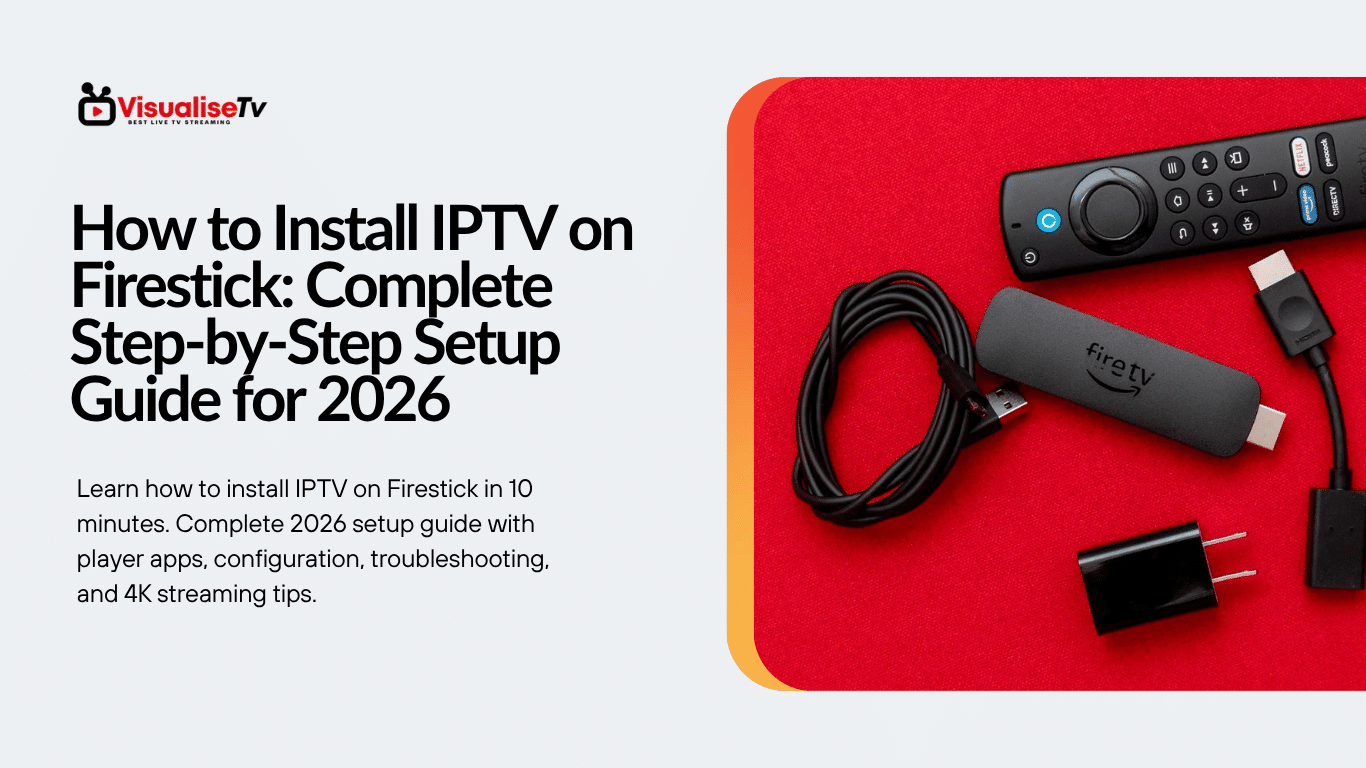
Quick Answer: How to Install IPTV on Firestick
To install IPTV on Firestick in 2026, follow five steps: enable Apps from Unknown Sources in Firestick Settings, install Downloader from the Amazon Appstore, sideload an IPTV player such as TiviMate, IBO Player Pro, or XCIPTV, connect your VisualiseTv subscription using the M3U URL or Xtream Codes login, and optimise buffer and decoder settings for smooth 4K playback. The full process takes around ten minutes.
Knowing how to install IPTV on Firestick correctly is the difference between a smooth 4K streaming experience and constant buffering. This complete technical guide walks you through every step required to set up a fully functional live TV streaming environment on any current generation of Amazon Firestick, from the entry-level Firestick Lite to the Firestick 4K Max. Each step has been tested by the VisualiseTv technical team across multiple firmware versions and network conditions.
By the end of this guide, your Firestick will be configured for over 35,000 live channels, 150,000+ on-demand titles, full electronic programme guide (EPG) support, and stable playback on Wi-Fi or Ethernet. Every recommendation below reflects real-world performance data collected from the VisualiseTv subscriber base across more than 60 countries.
Table of Contents
- What You Need Before Installing IPTV on Firestick
- Step 1: Enable Apps from Unknown Sources
- Step 2: Install the Downloader Application
- Step 3: Install a Compatible IPTV Player
- IPTV Player Comparison Table
- Step 4: Connect Your VisualiseTv Subscription
- Step 5: Optimise Playback Settings
- Common Firestick IPTV Issues and Fixes
- Why VisualiseTv Performs Best on Firestick
- Frequently Asked Questions
What You Need Before Installing IPTV on Firestick
Before beginning the IPTV Firestick installation process, prepare the following hardware, software, and network requirements. A correctly prepared environment eliminates approximately 80 percent of the buffering and connection issues users typically encounter after installation.
- An Amazon Firestick device of any generation: Lite, HD, 4K, or 4K Max
- A stable internet connection of 25 Mbps minimum for HD or 50 Mbps for 4K
- An active VisualiseTv subscription with login credentials or M3U URL ready
- A 5 GHz Wi-Fi network or wired Ethernet adapter for best stability
- Around 10 minutes for the complete installation process
Step 1: Enable Apps from Unknown Sources on Firestick
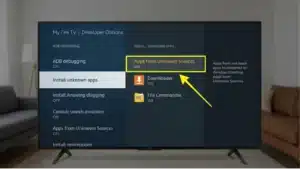
The first technical step is allowing your Firestick to install applications outside the Amazon Appstore. Most professional IPTV player applications are distributed as APK files, which require this setting to be enabled. This is a one-time configuration that can be reversed at any time.
- From the Firestick home screen, navigate to Settings in the top menu
- Select My Fire TV (older devices may show “Device” instead)
- Click Developer Options
- Enable Apps from Unknown Sources and confirm “Turn On” when the warning appears
- Enable ADB Debugging if you plan to use a remote installer
If you do not see Developer Options on newer Firestick firmware, return to My Fire TV, select About, and click the device name seven times to unlock the developer menu. Amazon hides this menu by default on recent firmware to discourage casual sideloading, but the option remains fully available.
Step 2: Install the Downloader Application
Downloader is the standard sideloading tool for installing IPTV player APKs on Firestick. It is officially available on the Amazon Appstore and serves as the bridge between your Firestick and the player application files. Downloader is fully legitimate, frequently updated, and trusted across the streaming ecosystem.
- From the Firestick home screen, press the search icon (magnifying glass)
- Type “Downloader” and select the orange app icon by AFTVnews
- Click Get or Download to install it
- Open Downloader and grant the requested storage permissions
- Allow the prompt asking for permission to install applications
Once Downloader is installed and configured, you can use it to fetch any APK file by entering a direct URL or by browsing through its built-in browser. The app remembers previously downloaded URLs, which makes future updates and reinstalls much faster.
Step 3: Install a Compatible IPTV Player Application
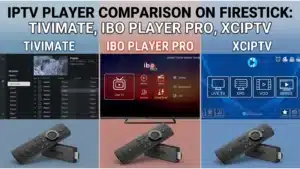
VisualiseTv works with all major professional IPTV player applications. The choice of player depends on your preferred user interface and the level of customisation you require. The three most reliable players for Firestick streaming in 2026 are TiviMate, IBO Player Pro, and XCIPTV.
TiviMate
TiviMate offers a clean, modern interface designed specifically for live TV streaming. It supports multiple playlists, EPG integration, and catch-up features. The free version handles most users; the premium version unlocks recording and advanced playlist management.
IBO Player Pro
IBO Player Pro is a lightweight, stable player widely used for Firestick streaming. It supports M3U URLs and Xtream Codes login, includes a built-in EPG, and uses a one-time activation per device which simplifies long-term use.
XCIPTV Player
XCIPTV is a feature-rich application with extensive customisation, parental controls, and support for both M3U and Xtream Codes formats. It is well suited for users who want advanced configuration options including multi-screen layouts and gesture controls.
IPTV Player Quick Comparison
| Feature | TiviMate | IBO Player Pro | XCIPTV |
|---|---|---|---|
| Interface Style | Modern, premium | Lightweight, fast | Customisable |
| EPG Support | Excellent | Good | Excellent |
| Catch-up TV | Yes (Premium) | Limited | Yes |
| Recording | Yes (Premium) | No | Yes |
| Pricing Model | Free + Premium | One-time activation | Free + Pro |
| Ideal For | Premium UX seekers | Long-term simplicity | Power users |
To install any of these players, open Downloader, enter the official APK URL of the player, and follow the on-screen installation prompts. Always download from official developer sources to avoid modified or insecure builds.
Step 4: Connect Your VisualiseTv Subscription
After installing your preferred player, the next step is linking it to your VisualiseTv subscription. The connection method depends on the credentials provided when your subscription was activated. Both options below take less than 60 seconds to configure.
Method 1: M3U URL Connection
- Open the player and select Add Playlist or Add Source
- Choose M3U Playlist URL as the connection type
- Paste the M3U URL provided in your VisualiseTv welcome email
- Add a custom playlist name such as “VisualiseTv”
- Click Save or Process and wait for channels to load
Method 2: Xtream Codes Login
- Open the player and select Add Playlist
- Choose Xtream Codes API as the connection type
- Enter your VisualiseTv server URL, username, and password
- Confirm and let the app synchronise the channel list and EPG
The first synchronisation takes 30 seconds to two minutes depending on network speed and the size of your subscription package. After this initial sync, channels and the electronic programme guide are cached locally for instant access on subsequent launches.
Step 5: Optimise Playback Settings for Smooth Streaming
Default settings work for most users, but a few targeted adjustments significantly improve performance, especially for 4K content and live sports events where every second of latency matters. The settings below are the same configuration recommended by the VisualiseTv engineering team.
- Set the video decoder to Hardware (HW+) for native Firestick acceleration
- Enable Auto Frame Rate Matching if your TV supports it (reduces stutter)
- Set buffer size between 2000 ms and 4000 ms for live channels
- Enable Catch-up if your VisualiseTv plan supports the feature
- Enable EPG Auto-update every 12 to 24 hours
- Disable any unnecessary background applications on the Firestick
Stream 35,000+ Live Channels in 4K on Your Firestick
Activate your VisualiseTv subscription and start streaming live TV, sports, and on-demand content instantly worldwide.
Common Firestick IPTV Issues and How to Fix Them
Even with a correctly installed setup, you may occasionally face technical issues. The following are the most frequent problems reported by Firestick users and the proven steps to resolve each one.
Buffering or Channel Freezing
- Restart the Firestick by holding Select + Play for ten seconds
- Switch from 2.4 GHz to 5 GHz Wi-Fi or use a wired Ethernet connection
- Increase the buffer size in your player settings
- Clear the cache of the IPTV player from Firestick Settings
- Test other channels to confirm whether the issue is server-side or local
Channels Not Loading After Installation
- Verify your M3U URL or Xtream Codes credentials are typed correctly
- Check that your subscription is active and not expired
- Force-refresh the playlist from inside the player settings
- Re-enter the connection details and remove the old playlist
Audio and Video Sync Issues
- Switch the decoder from Software to Hardware (or vice versa)
- Disable surround sound passthrough on Firestick if connected to a soundbar
- Update the player application to the latest version
Application Crashes or Freezes
- Clear the application cache from Firestick Settings under Applications
- Free at least 500 MB of internal storage on the Firestick
- Reinstall the player application using Downloader
Why VisualiseTv Performs Best on Firestick
VisualiseTv is engineered for low-latency delivery on connected devices, making it particularly stable on Amazon Firestick hardware. The service runs on global anti-buffer servers distributed across multiple regions, which means your Firestick connects to the nearest geographic node automatically, reducing latency and improving stream quality regardless of your location.
- Over 35,000 live channels covering global, regional, and niche content
- More than 150,000 on-demand films and series with continuous library updates
- 4K Ultra HD, FHD, and HD streams optimised for Firestick decoders
- Multi-format compatibility: M3U, Xtream Codes, and EPG support
- Instant activation after subscription with worldwide server coverage
- 24/7 technical support for installation and configuration assistance
Because VisualiseTv operates without long-term contracts and supports multi-device streaming, your subscription works seamlessly across Firestick, Smart TV, Android TV box, smartphone, tablet, and computer from a single account.
Final Recommendations for Long-Term Firestick Streaming Stability
Beyond the installation itself, a few maintenance habits keep your Firestick streaming experience stable over months and years of use. These practices come from the internal maintenance protocol used by the VisualiseTv support team for premium subscribers.
- Restart your Firestick at least once per week to clear memory and refresh services
- Keep your IPTV player application updated to the latest stable release
- Run a router restart every two to four weeks to clear DNS cache
- Avoid installing unverified applications that compete for Firestick resources
- Check VisualiseTv server status updates if multiple channels appear offline
Following these maintenance steps prevents the gradual performance degradation that affects many Firestick devices over time, and ensures your streaming experience remains as smooth in month twelve as it was on day one.
Frequently Asked Questions
Is installing IPTV on Firestick legal?
Installing an IPTV player application on Firestick is fully legal. The legality depends on the content source you connect to. VisualiseTv operates as a legitimate streaming subscription service with properly distributed content channels, ensuring full compliance for subscribers worldwide.
Which Firestick model is best for IPTV streaming?
The Firestick 4K Max offers the best performance thanks to its faster processor, Wi-Fi 6 support, and improved decoder efficiency. The standard Firestick HD performs perfectly well for FHD content, and the Firestick Lite is sufficient for HD streaming on a single device.
How much internet speed do I need for IPTV on Firestick?
A minimum of 25 Mbps is recommended for HD streaming, 50 Mbps for 4K content, and at least 100 Mbps if multiple devices stream simultaneously in your household. Stability matters more than peak speed: a steady 30 Mbps connection performs better than an unstable 100 Mbps line.
Can I use the same VisualiseTv account on multiple devices?
Yes. VisualiseTv subscription plans support multi-device streaming. You can use the same credentials on Firestick, Smart TV, mobile, and tablet, depending on the simultaneous connection limit of your selected plan.
Do I need a VPN to use IPTV on Firestick?
A VPN is not required to use a legitimate IPTV streaming service. Some users prefer using a VPN for general privacy reasons or when travelling internationally. VisualiseTv works correctly with or without a VPN connection.
Ready to Stream the World on Your Firestick?
Join thousands of subscribers enjoying premium live TV, sports, and on-demand content with VisualiseTv.
One Comment