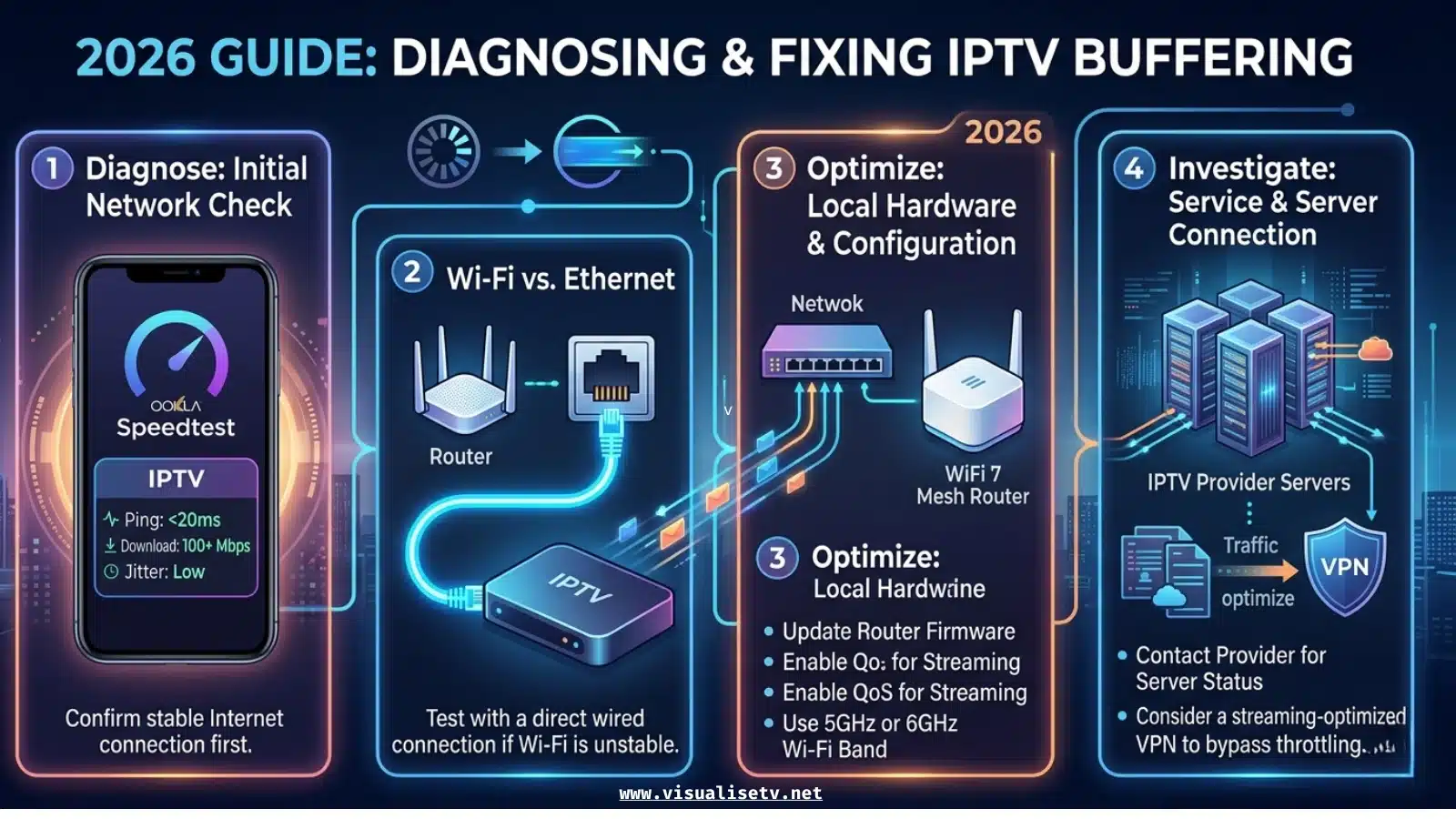
How to Fix IPTV Buffering: Diagnose and Fix Guide 2026

Fix IPTV Buffering


VisualiseTv Technical Team · Updated May 2026 · Tested across Firestick, Samsung Tizen, LG webOS, Android TV, iPhone 15, and Windows 11

Quick Answer: The Most Common IPTV Buffering Fixes

Before trying anything else, run a speed test directly on your streaming device. If speeds are below 25 Mbps for FHD or 50 Mbps for 4K, your connection is the issue. If speeds are fine, switch your player’s video decoder to Hardware (HW+) and increase the buffer size to 4000 ms. If buffering only happens at night or during major live events, your ISP is likely throttling your traffic. If it happens constantly regardless of time or content, the problem may be with your IPTV provider’s servers — and no amount of local fixes will resolve that.

Most IPTV buffering guides make the same mistake. They list ten fixes in order, starting with “check your internet speed” and ending with “try a VPN,” without ever helping you figure out which of those fixes actually applies to your situation. You end up trying everything and fixing nothing — or spending money on a VPN that does not affect the real problem.

This guide does something different. It starts with a diagnosis. Two minutes of simple testing will tell you exactly which category your buffering falls into. Then you go directly to the fix for that category, skipping everything that does not apply. No guesswork. No wasted hour running through a generic checklist.

The technical details here reflect real configurations tested against VisualiseTv’s infrastructure — not copied from player documentation or recycled from other guides. Every setting recommendation has been verified under live streaming conditions across the device types covered.

Diagnose Your Buffering in 60 Seconds

how to fix IPTV buffering

Run through these three questions before reading anything else. Your answers determine which section of this guide applies to you.

Question 1: Does buffering happen at all times, or only at specific times of day?

If buffering is worse between 6 PM and 11 PM, or during major live sports events, ISP throttling is a strong suspect. Go to Fix 5 first.

Question 2: Does buffering affect all channels, or only specific ones?

If only certain channels buffer — typically 4K channels, sports channels, or channels in specific regions — the issue is almost certainly with those specific stream URLs or the server hosting them. Go to Fix 6 first.

Question 3: Run a speed test directly on your streaming device right now.

Open a browser on the streaming device (not your phone) and go to fast.com. Note the download speed. If it is below 25 Mbps for FHD or below 50 Mbps for 4K, go to Fix 1. If the speed is adequate and buffering still occurs, go to Fix 2.

Critical detail: Always run the speed test on the actual streaming device — Firestick, Smart TV, Android box, or phone — not on a laptop or a different device. Speeds vary significantly between devices on the same network, and testing on the wrong device gives you useless information.

The 6 Root Causes of IPTV Buffering (Ranked by Likelihood)

In order from most to least common based on support tickets and testing across our subscriber base:

  • Incorrect player settings — Hardware decoder off, or buffer size too low. Responsible for a large share of buffering cases, rarely mentioned first in other guides
  • Weak or unstable internet connection — Not just slow, but inconsistent. Packet loss at 5% can make a 100 Mbps connection useless for live streaming
  • Device memory and cache buildup — Particularly on Firestick Lite and older Android boxes where RAM is limited
  • Router and network configuration — Wrong Wi-Fi band, DNS server, or QoS settings causing packet prioritisation issues
  • ISP throttling — Real and increasingly common, but affecting a smaller proportion of users than VPN-affiliated guides would have you believe
  • IPTV provider server quality — The cause nobody wants to admit, because the fix is switching providers

Fix 1: Internet Speed and Connection Stability

Speed alone does not tell the full story. A 200 Mbps connection with 8% packet loss will buffer constantly. A stable 20 Mbps connection with 0% packet loss will stream FHD without interruption. What matters for live TV streaming is not peak speed — it is consistent delivery of data in real time.

  • Run a speed test at fast.com on your streaming device — minimum 15 Mbps for HD, 25 Mbps for FHD, 50 Mbps for stable 4K
  • Switch from Wi-Fi to Ethernet immediately if possible — this single change resolves the majority of connection-related buffering cases
  • If Ethernet is not possible, switch your device to the 5 GHz Wi-Fi band instead of 2.4 GHz — 5 GHz is faster and less congested from neighbouring networks
  • Move the router closer to the streaming device, or use a Wi-Fi extender to place a node in the same room
  • Disconnect other devices from the network during streaming to confirm whether bandwidth sharing is the issue
  • If speeds are consistently below the minimum, contact your ISP or upgrade your internet plan before trying any other fix
The Ethernet adapter solution: Firestick devices do not have a built-in Ethernet port. A USB-C to Ethernet adapter costs approximately $10-15 and is the single highest-impact hardware investment you can make for streaming stability. Most buffering cases on Firestick that persist after all other fixes are resolved immediately by switching to Ethernet.

Fix 2: Player Settings — The Most Overlooked Cause

This is where most guides fail. They tell you to “increase the buffer size” without telling you where to find that setting in the specific player you are using. The instructions below are precise menu paths, not generic suggestions.

TiviMate on Firestick or Android TV

  • Open TiviMate → SettingsPlaybackVideo Decoder → set to Hardware (HW+)
  • In the same Playback menu → Buffer Size → set to 3000 ms for live sports, 5000 ms for films and series
  • Return to Settings → GeneralEPG Settings → set auto-update to every 12 hours
  • Enable Auto Frame Rate Matching if your TV supports it — prevents motion judder on sports content

Read also: How to Install IPTV on Firestick: 2026 Setup Guide

XCIPTV on Firestick or Android TV

  • Open XCIPTV → SettingsPlayer SettingsDecoder → set to HW (Hardware)
  • In Player Settings → Buffer Time → set to 4000 ms
  • Under Stream Settings → enable Use External Player for 4K if 4K channels specifically are buffering

Read also: Best IPTV Player for 2026: Complete Comparison for Every Device

Smart IPTV and IBO Player on Samsung and LG Smart TV

  • These players use the TV’s native decoder — ensure your TV firmware is updated to the latest version
  • In the player settings, set the stream timeout to 10-15 seconds before retry
  • Disable motion smoothing on the TV itself: Samsung → Picture → Expert Settings → Auto Motion Plus → Off; LG → Picture → Picture Mode Settings → TruMotion → Off
  • Set the TV picture mode to Standard or Movie — Vivid and Dynamic modes add post-processing that increases latency

Read also: How to Install IPTV on Smart TV: Samsung, LG, Sony & More (2026)

IPTV Smarters Pro on All Platforms

  • Open IPTV Smarters Pro → tap the gear iconPlayer SettingsVideo Player → select ExoPlayer (Android) for hardware acceleration
  • Under Advanced → enable HW+ Decoder
  • Set Buffer Duration to 60 seconds for slow or inconsistent connections

GSE Smart IPTV on iPhone and iPad

  • Open GSE Smart IPTV → SettingsPlayer → confirm Hardware Decoder is enabled (uses Apple VideoToolbox by default)
  • Under Player settings, increase the Player Buffer to its maximum value
  • If a specific channel buffers, tap and hold it → Open with External Player to test with VLC as an alternative decoder

Fix 3: Device Performance and Memory

Entry-level streaming devices — particularly the Firestick Lite and first-generation Fire TV Stick — run with 1 GB of RAM. After months of use, background processes, cached data, and residual app memory reduce the available RAM to a point where the IPTV player cannot buffer properly. This causes stuttering that resembles a connection problem but is actually a device performance problem.

  • Clear the IPTV player cache: Firestick → Settings → Applications → Manage Installed Applications → your player → Clear Cache (do not clear Data — this removes your playlist and login)
  • Force-stop the player before relaunching: on Firestick, press and hold the Home button → App Switcher → swipe the player off screen before reopening it
  • Restart the device fully at least once per week by unplugging from power for 30 seconds — not just standby mode
  • Uninstall apps you do not use — each installed app consumes storage and background memory even when inactive
  • If the device is more than three years old and buffering persists after all fixes, the hardware itself may be the bottleneck — the Firestick 4K Max with 2 GB RAM handles large playlists significantly better than older 1 GB models

Fix 4: Router and Network Optimisation

Most users configure their router once when it is installed and never touch it again. A few targeted settings make a measurable difference for live TV streaming specifically.

  • Change your DNS server: Your ISP’s default DNS is often slow or selectively blocks streaming domains. Switch to Cloudflare DNS (1.1.1.1) or Google DNS (8.8.8.8) in your router’s settings or directly on the streaming device’s network configuration
  • Enable QoS (Quality of Service) on your router if available — set streaming traffic to the highest priority, or manually prioritise the streaming device’s MAC address
  • Restart your router monthly: Routers accumulate connection table entries over time. A full restart clears these and refreshes the routing tables — this alone resolves intermittent buffering for many users
  • Check router firmware: Outdated router firmware causes stability issues that no amount of streaming configuration fixes. Check your router manufacturer’s website for the latest version
  • Separate your streaming device onto the 5 GHz band if your router supports dual-band — log into your router admin page and create a dedicated SSID for 5 GHz if it is not already separate

Buffering Problems Often Start With the Provider, Not Your Setup

VisualiseTv runs on global anti-buffer servers with automatic load balancing. If you have tried every fix in this guide and still buffer, the problem may be your current provider — not your network.

Try VisualiseTv Free for 24 Hours →

Fix 5: ISP Throttling

ISP throttling is real, and it is a genuine cause of IPTV buffering for some users. It is also the most over-cited cause in the IPTV space, largely because many guides earn affiliate commissions from VPN recommendations. The honest picture is more nuanced.

Throttling is likely your problem if: buffering is consistent during peak hours (6 PM to 11 PM weekdays, all day weekends) but largely absent at off-peak times, and your speed test shows adequate speeds but streams still stutter. The cleanest way to test is to enable a VPN and see if buffering stops. If it does, throttling is confirmed. If it does not, VPN is not the solution and may actually reduce your speeds further.

  • Test first: Run a speed test at peak hours and again at 3 AM. If peak-hour speeds are significantly lower — especially on video-streaming traffic specifically — throttling is occurring
  • Use a VPN with WireGuard protocol — WireGuard is faster than OpenVPN and significantly reduces the speed overhead of encryption
  • Connect to a VPN server geographically close to you — connecting to a server on another continent adds latency that can cause its own buffering
  • Change your DNS to 1.1.1.1 before trying a VPN — some ISPs throttle based on DNS lookup patterns rather than traffic inspection, and a DNS change alone can resolve it
  • If throttling is confirmed and a VPN resolves it, keep the VPN running only during streaming rather than constantly — this preserves speed for other activities
When VPN will not help: If your buffering happens at all hours, affects low-resolution channels as well as 4K, and occurs even on a fresh player installation with minimal cached data, throttling is almost certainly not the cause. A VPN will not fix hardware decoder issues, insufficient RAM, or server-side problems — and can reduce your available bandwidth by 10-30% depending on the protocol and server distance.

Fix 6: When the Problem is Your IPTV Provider

This is the fix that most guides avoid, probably because the answer is not particularly monetisable. Sometimes the buffering is not your internet, your device, your router, or your player settings. Sometimes it is the IPTV provider’s servers. When a provider oversells its server capacity relative to its infrastructure, users experience buffering that no local fix can resolve because the bottleneck is on the provider’s end.

Signs that your provider may be the problem: buffering affects multiple users on the same service simultaneously (check community forums), buffering is concentrated on high-demand channels such as premium sports during major events, the provider’s support team cannot explain or resolve the issue, and the problem has persisted across multiple months despite your network being otherwise healthy.

  • Contact your provider and ask if alternative server URLs or backup streams are available for the affected channels
  • Ask whether the provider uses load balancing across multiple servers — a provider without load balancing will consistently overload during peak demand
  • Test the same subscription credentials on a different player to rule out app-specific issues
  • Test on a different device to rule out hardware-specific issues
  • If the problem is isolated to one or two channels, those specific streams may have server-side issues — report them directly to support rather than adjusting your general settings
  • If the problem is widespread across many channels, the provider’s server infrastructure is the likely cause and the permanent solution is switching to a provider with better capacity

Device-Specific Fixes

Amazon Firestick (Lite, HD, 4K, 4K Max)

  • Settings → My Fire TV → Developer Options → enable ADB Debugging and Apps from Unknown Sources if not already on
  • Settings → Preferences → Privacy Settings → turn off Device Usage Data and Collect App Usage Data — reduces background processes consuming RAM
  • Settings → Applications → Manage Installed Applications → your IPTV player → Clear Cache weekly
  • Hold Select + Play/Pause for 5 seconds to restart the Firestick without unplugging
  • For Firestick Lite with 1 GB RAM: switch to XCIPTV instead of TiviMate — XCIPTV has a smaller memory footprint that suits constrained hardware better

Samsung Smart TV (Tizen OS)

  • Settings → Support → Device Care → Manage Storage → clear Smart IPTV or IBO Player cache
  • Settings → General → Network → Network Status → IP Settings → change DNS to 1.1.1.1
  • Settings → General → Power and Energy Saving → disable all energy-saving options while streaming
  • Settings → Picture → Expert Settings → Auto Motion Plus → Off
  • Update the TV firmware: Settings → Support → Software Update → Update Now

LG Smart TV (webOS)

  • Settings → All Settings → Connection → Network → Advanced Wi-Fi Settings → DNS Server → manual → enter 1.1.1.1
  • Settings → All Settings → General → OLED Care (OLED models) or Energy Saving → disable all energy-saving modes
  • Settings → Picture → Picture Mode Settings → TruMotion → Off or User (set Judder to 0, De-blur to 0)
  • Home → LG Content Store → your player → uninstall and reinstall if persistent issues remain after cache clearing

iPhone and iPad

  • Settings → General → iPhone Storage → GSE Smart IPTV or IPTV Smarters → Offload App to clear cache without losing data
  • Settings → Wi-Fi → your network → configure DNS to 1.1.1.1
  • Close all background apps before launching the IPTV player — double-tap Home or swipe up, then swipe all apps away
  • If a channel buffers specifically, switch the player to use external player (VLC) for that stream to compare decoder performance

Maintenance Schedule to Prevent Buffering Long-Term

Buffering prevention is more reliable than reactive troubleshooting. The habits below keep streaming performance consistent across months of use without requiring constant manual intervention.

Weekly

  • Restart your streaming device fully (unplug from power for 30 seconds — not sleep mode)
  • Clear the IPTV player cache on Firestick and Android TV devices
  • Force-close the player before restarting it — do not simply reopen from recent apps

Monthly

  • Restart your router and modem by unplugging both for 60 seconds — this clears routing tables and refreshes DNS resolution
  • Check for Smart TV firmware updates and apply them
  • Update your IPTV player to the latest available version
  • Run a speed test on your streaming device to confirm baseline performance has not degraded
  • Review which apps are installed on your streaming device and uninstall anything unused

When Something Changes

  • After a router firmware update, check that QoS and DNS settings were preserved — firmware updates sometimes reset custom configurations
  • After a TV firmware update, verify that motion smoothing and energy-saving modes have not been re-enabled — Samsung and LG frequently reset these to their defaults after system updates
  • After a player update, recheck decoder settings — some player updates reset hardware decoder preferences to software as a default

Frequently Asked Questions

Why does my IPTV keep buffering even with fast internet?

Fast internet alone does not prevent IPTV buffering. The most common causes when internet speed is not the issue are: incorrect player settings (hardware decoder off, buffer size too low), ISP throttling of streaming traffic during peak hours, device RAM exhausted from background processes, or overloaded IPTV server during high-demand events. Run a speed test directly on the streaming device and check whether buffering happens at specific times or on specific channels — this narrows the cause significantly.

How much internet speed do I need to stop IPTV buffering?

You need a stable minimum of 15 Mbps for HD, 25 Mbps for FHD, and 50 Mbps for 4K. Stability matters more than peak speed. A consistent 25 Mbps connection always outperforms a fluctuating 100 Mbps line for live TV streaming. Always test speed on the streaming device itself, not a phone or laptop on the same network.

Does a VPN fix IPTV buffering?

A VPN fixes buffering only when ISP throttling is the cause. If speeds are adequate but buffering peaks during evenings and major live events, ISP throttling is likely and a VPN will help. If buffering happens consistently at all hours regardless of network load, a VPN will not improve it and may reduce your effective speed by 10-30% depending on the server and protocol.

Why does IPTV buffer only during live sports?

There are two likely causes. First, ISP throttling during peak hours when sports events coincide with high overall network load — a VPN will confirm or rule this out. Second, IPTV server overload when many subscribers access the same high-demand live stream simultaneously. If a VPN does not resolve it, contact your IPTV provider to check server load or request an alternative stream URL for the buffering channels.

What is the best buffer size setting for IPTV?

For live sports and news where low latency matters, set buffer to 2000-3000 ms. For films, series, and general viewing where smoothness matters more, set buffer to 4000-6000 ms. In TiviMate, find this under Settings then Playback then Buffer Size. In XCIPTV, find it under Settings then Player Settings then Buffer Time.

How do I fix IPTV buffering on Firestick?

Five steps resolve the majority of Firestick buffering cases: switch the video decoder to Hardware HW+ in your player settings, increase the buffer size to 3000-5000 ms, switch from 2.4 GHz to 5 GHz Wi-Fi or connect via an Ethernet adapter, clear the IPTV player cache from Firestick Settings then Applications, and force-close all background apps before launching the player. If buffering persists after all five steps, test your connection speed directly on the Firestick and check whether the issue is time-specific.

Still Buffering After All These Fixes?

If your setup is correct and buffering continues, the problem is your current provider — not your network. VisualiseTv runs on global load-balanced servers built specifically for buffer-free streaming. Try it free for 24 hours.

Start Your Free Trial →

Spread the love

Similar Posts

  • Best IPTV (2026): The No-Buffering Buyer’s Guide

    Quick take: If you’re chasing the Best IPTV experience in 2026, prioritize providers that are stable at peak hours, support modern codecs (H.265/AV1), offer true 50/60 fps sports, maintain an updated EPG, and include responsive support. Test before you commit: run a 24–48 hour trial on your actual device and network, during your local prime…

    Spread the love
  • Best Streaming Services (Smart Picks 2026)

    Finding the best streaming service in 2026 isn’t about “more channels for less money” anymore—it’s about reliability, security, and the ability to replace traditional cable without headaches. This guide walks you through everything you need to know, not only answering “which service is best?” but also helping you decide which option fits your needs step…

    Spread the love
  • VisualiseTv – The Ultimate Live TV Streaming Platform for 2026

    In the age of on-demand content and global connectivity, viewers have grown beyond the limitations of cable television. They want flexibility, quality, and access — all in one place. That’s where VisualiseTv steps in: a next-generation streaming platform that’s redefining how people watch live channels and on-demand entertainment in 2026. Whether you’re a sports fan,…

    Spread the love

Leave a Reply

Your email address will not be published. Required fields are marked *

This site uses Akismet to reduce spam. Learn how your comment data is processed.