
Quick answer: how to install IPTV on a Smart TV
Open your TV’s app store and install an IPTV player: IBO Player or Smart IPTV on Samsung and LG, TiviMate or IBO Player on Google TV and Android TV. Open the app and note the MAC address and device key it shows on screen. On your phone or computer, go to the player’s official website, enter that MAC and your M3U link or Xtream Codes login, then restart the app on the TV. Roku TVs cannot run these players, so they need a Fire TV stick or another device. The whole job takes about fifteen minutes.
Need a login first? See the IPTV subscription plans, and check the IPTV channel list by country before you set up the TV.
Two things trip people up on a Smart TV. The first is that the player app and the IPTV subscription are separate: the app is just the screen you watch in, and your channels come from the login you add to it. The second is the MAC address. Most Smart TV players show their own MAC and device key, which is not always the same as the TV’s hardware MAC, and using the wrong one is the most common reason activation fails. This guide walks through both, brand by brand.
In this guide
What you need
- A Smart TV from roughly 2018 or later. Older sets often have outdated app stores.
- A stable connection: about 25 Mbps for Full HD and 50 Mbps for 4K
- Your VisualiseTv login: an M3U link, or an Xtream Codes server URL, username and password
- A phone or computer to open the player’s activation website
- Ideally, an Ethernet cable from the router to the TV
Which IPTV app works on your TV
App stores differ by brand, model year and country, so a player listed here may be missing on your exact set. If it is, try the next one in the row.
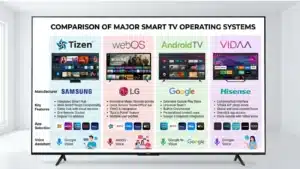
| TV system | Brands | Players to try first | How you pay for the player |
|---|---|---|---|
| Tizen | Samsung | IBO Player, Smart IPTV, SmartOne IPTV, Set IPTV | Free trial, then a fee per TV |
| webOS | LG | IBO Player, Smart IPTV, Set IPTV | Free trial, then a fee per TV |
| VIDAA | Hisense, some Toshiba | IBO Player, SmartOne IPTV (varies by region) | Free trial, then a fee per TV |
| Google TV / Android TV | Sony, TCL, Philips, some Hisense | TiviMate, IBO Player Pro | Free version, paid upgrade |
| Roku TV | TCL Roku, Hisense Roku | None that accept your own login | Use a Fire TV stick instead |
The fee goes to the app’s developer, not to VisualiseTv. As a guide, Smart IPTV charges a one-time €5.49 per TV after a 7-day trial, and IBO Player charges €5 a year or €10 for a lifetime licence per device. Check the developer’s site for the current price before you pay.
Install IPTV on a Samsung TV (Tizen)
- Press Home, open Apps and select the search icon.
- Search for IBO Player (or Smart IPTV) and select Install.
- Open the app. It shows a MAC address and a device key. Write both down.
- Follow the activation steps below.
Smart IPTV on Samsung: it is in the Samsung store for 2019 and newer Tizen TVs. On 2015 to 2018 models it has to be installed from a USB stick, following the instructions on the developer’s site, siptv.app. If that sounds like too much work, IBO Player is the easier choice on older sets.
Install IPTV on an LG TV (webOS)
- Press Home and open the LG Content Store (called Apps on newer models).
- Search for IBO Player, Smart IPTV or Set IPTV and install it.
- Open the app and write down the MAC address and device key it shows.
- Follow the activation steps below.
LG’s webOS handles IPTV well, and the OLED models are especially good for sport thanks to their fast motion response.
Install IPTV on a Hisense TV (VIDAA)
Hisense sells two kinds of TV. Check the home screen: if it shows Google TV, follow the Google TV section. If it shows VIDAA:
- Open My Apps and then the App Store.
- Search for IBO Player or SmartOne IPTV. Which players appear depends on your region.
- Install, open, note the MAC and device key, then activate.
VIDAA cannot install apps from outside its store. If neither player is listed in your country, plug in a Fire TV stick and follow our Firestick guide instead.
Install IPTV on Google TV and Android TV
Sony, TCL, Philips and some Hisense TVs run Google TV or Android TV. They use the Google Play Store, which gives you the widest choice of players.
- Open the Google Play Store on the TV.
- Search for TiviMate or IBO Player Pro and install it.
- Open the app, choose Add playlist and sign in with Xtream Codes or your M3U link. These apps take your login directly on the TV, so no activation website is needed for the playlist itself.
Roku TVs
Roku removed support for uncertified channels in 2022 and has since taken down playlist players, so there is no Roku app that accepts your own M3U or Xtream login. The practical fix is an HDMI device: a Fire TV Stick 4K Max, an Onn 4K Pro or a Google TV Streamer. Our best device for IPTV guide compares them.
App MAC vs TV MAC: which one to use

Players such as IBO Player and Smart IPTV show a MAC address on their own start screen. Always use the one the app shows. Some players generate their own, so it may not match the TV’s hardware MAC, and the activation site only recognises the app’s version.
You only need the TV’s own MAC address if a player asks for it or your network blocks unknown devices. Here is where to find it:
| TV | Menu path |
|---|---|
| Samsung, 2022 and newer | Settings → All Settings → Support → About This TV |
| Samsung, 2021 and older | Settings → Support → About This TV (on some models: Contact Samsung) |
| LG webOS 23 and newer | Settings → All Settings → Support → TV Information |
| LG webOS 6.0 and webOS 22 | All Settings → General → Devices → TV Management → TV Information |
| Google TV / Android TV | Settings → System → About → Status (or Network & Internet → your network) |
| Roku TV | Settings → Network → About |
Activate the player and add your VisualiseTv login
This applies to Samsung, LG and VIDAA players that use a website for setup.
- On your phone or computer, open the player’s official website, for example siptv.app for Smart IPTV or iboplayer.com for IBO Player.
- Enter the MAC address (and device key, if asked) exactly as the app shows it.
- Add your playlist: either paste the M3U link, or choose Xtream Codes and enter the server URL, username and password from your welcome message.
- Give the playlist a name, such as VisualiseTv, and save.
- Close the app on the TV completely and open it again. Your channels and TV guide load within a minute or two.
Settings for smooth playback
- Use an Ethernet cable if you can. On Wi-Fi, use the 5 GHz band.
- In the player, set the buffer to 2,000 to 3,000 ms for live sport and 4,000 to 5,000 ms for films. A bigger buffer is smoother but further behind live.
- Choose hardware decoding if the player offers a choice.
- Turn off motion smoothing on the TV: Auto Motion Plus on Samsung, TruMotion on LG, Motionflow on Sony.
- Set the picture mode to Standard or Movie. Vivid and Dynamic modes add processing delay.
- Switch off energy-saving modes while watching.
40,000+ live channels on the TV you already own
Choose a plan and your login arrives within 30 minutes.
Troubleshooting
| Problem | Likely cause | Fix |
|---|---|---|
| Player not in the app store | Model year or country | Update the TV’s software, try another player from the table, or use a Fire TV stick |
| Activation site says MAC not found | TV MAC used instead of the app’s MAC, or a typo | Copy the MAC exactly as the app’s start screen shows it |
| Playlist added but no channels | Wrong login, app not restarted, or the plan has ended | Re-enter the login, close and reopen the app, check your plan’s end date |
| TV guide empty | No guide link or wrong time zone | Add the XMLTV link from your welcome message and set the time zone |
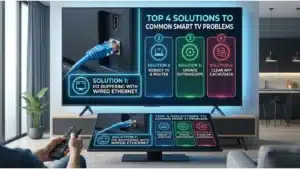
| Buffering | Wi-Fi or buffer size | Use Ethernet or 5 GHz, raise the buffer. See our buffering guide |
| Picture looks soft on a 4K TV | Channel is not 4K, or slow connection | Check the channel has a 4K version and that you have about 50 Mbps |
| Sound out of sync | Soundbar passthrough | Set the TV’s audio output to PCM, or adjust the delay in the player |
If a TV is too old for any current player, a Fire TV stick in the HDMI port gives it full IPTV support for little money.
Using VisualiseTv on a Smart TV
- 40,000+ live channels from 100+ countries and 150,000+ films and series
- Both login types in every plan: M3U and Xtream Codes, with a TV guide link
- Streams in 4K, Full HD and HD, depending on the channel
- Login details sent within 5 to 30 minutes of payment
- 24/7 WhatsApp support, including help with player activation
Frequently Asked Questions
Can I install IPTV on any Smart TV?
On most Samsung, LG, Hisense, Sony, TCL and Philips TVs from about 2018 onwards, yes. Roku TVs and very old sets cannot run the players, so they need an HDMI device such as a Fire TV stick.
Do I need a separate device to watch IPTV on my Smart TV?
Not on a modern Samsung, LG, Hisense or Google TV set. You only need one for a Roku TV, a very old TV, or a TV whose store has no IPTV player in your country.
Is Smart IPTV free on Samsung and LG?
It has a 7-day free trial, then a one-time activation fee per TV, about €5.49, paid to the app’s developer rather than to VisualiseTv.
Why does the MAC address in the app differ from my TV’s MAC?
Some players create their own MAC address. Use the one the app shows on its start screen when you activate it, not the one in the TV’s settings.
Can I watch IPTV on a Roku TV?
Not directly. Roku no longer allows apps that load your own IPTV login. Plug a Fire TV Stick 4K Max or another streaming device into the TV.
Why does my IPTV keep buffering on my Smart TV?
Usually Wi-Fi. Use an Ethernet cable or the 5 GHz band, raise the buffer in the player and restart the TV. Our buffering guide covers the rest.
Will IPTV work on my old Smart TV from 2015?
Sometimes. Older stores often lack current players. A Fire TV stick in the HDMI port is the reliable fix.
Ready to watch on your Smart TV?
Choose a plan, add the login to your player, and you are watching in minutes.
How this guide was made: written and maintained by the VisualiseTv technical team, the same people who answer customer setup questions. Menu paths were checked against Samsung and LG support pages, and app availability against the developers’ own sites. Every step, setting and figure was fact-checked in October 2026, and we update the guide when app stores or TV menus change.